Skills: giving AI a recipe for the job
How skills work in Claude: the folder tree, trigger words, and how to write a good workflow for consistent output. A guide for teachers and vibe coders.
Anyone who works with AI regularly runs into the same thing: In every new chat, you explain the same things from scratch. Which format you want, which rules to follow, what the output should look like. And every time, you get a different result. In some cases, it matters that outputs are consistent with each other. So how do we get that consistency?
Skills are the answer to that problem. In the shortest possible definition: a recipe you write once and use again and again, instead of explaining everything to the AI from scratch each time.
There are two main reasons to use skills: consistency and speed. With a well-written skill, a weekly lesson worksheet comes out every week with the same structure, the same typography, and through the same checks. The AI already knows what to do and how. A single sentence is enough to start it.
How does a skill work?
A skill is a folder that contains at least one SKILL.md file. At the top of the file are two pieces of information:
---
name: weekly-worksheet
description: Prepares a weekly worksheet (PDF) for private students.
  Use for requests like "make a worksheet", "materials", "homework
  for this week", or whenever a student's name and a topic appear together.
---
At first, Claude sees only this name and description. When it recognizes that a request matches the description, it reads the full SKILL.md. It opens the other files in the folder only when it needs them. This way, even with dozens of skills installed, Claude’s attention isn’t scattered.
You can ask Claude to save a particular workflow as a skill during a chat. If you’d rather build one by hand, you can upload the skill as a zip file in the Claude app. In Claude Code, putting the folder under ~/.claude/skills/ or in the project’s .claude/skills/ folder is enough.
Trigger words
For a skill to be useful, it first has to kick in at the right moment. What decides this is the description field. Claude compares your request with this description to decide which skill to use. So besides saying what the skill does, the description should also say which words people use to ask for it.
A good description includes:
- The name of the task and its synonyms: “worksheet”, “materials”, “handout”, “homework”. You may ask for the same thing in different words on different days.
- Both languages: If you work in both Turkish and English, write the terms in both.
- Situations: Cases that call for the skill even when no keyword appears. For example, “whenever a student’s name and a topic appear together”.
- File types: If the input or output is a specific type (
.pdf,.docx), say so. - Boundaries: If you have more than one skill for similar work, write when not to use this one: “Don’t use for school students; there’s a
school-materialsskill for them.”
If the description is too narrow, the skill won’t run when it should; too broad, and it kicks in on unrelated requests. After writing it, test it by asking for the same thing in a few different ways: Does the skill open every time, and does it stay quiet on an unrelated request?
SKILL.md is usually not enough
First skills are usually one long text file. That works for simple tasks. But a real workflow needs more than text: templates, fonts, checklists, reference information. This is where packaging a skill as a zip makes sense: The instructions travel together with all the materials for the job, in a single folder.
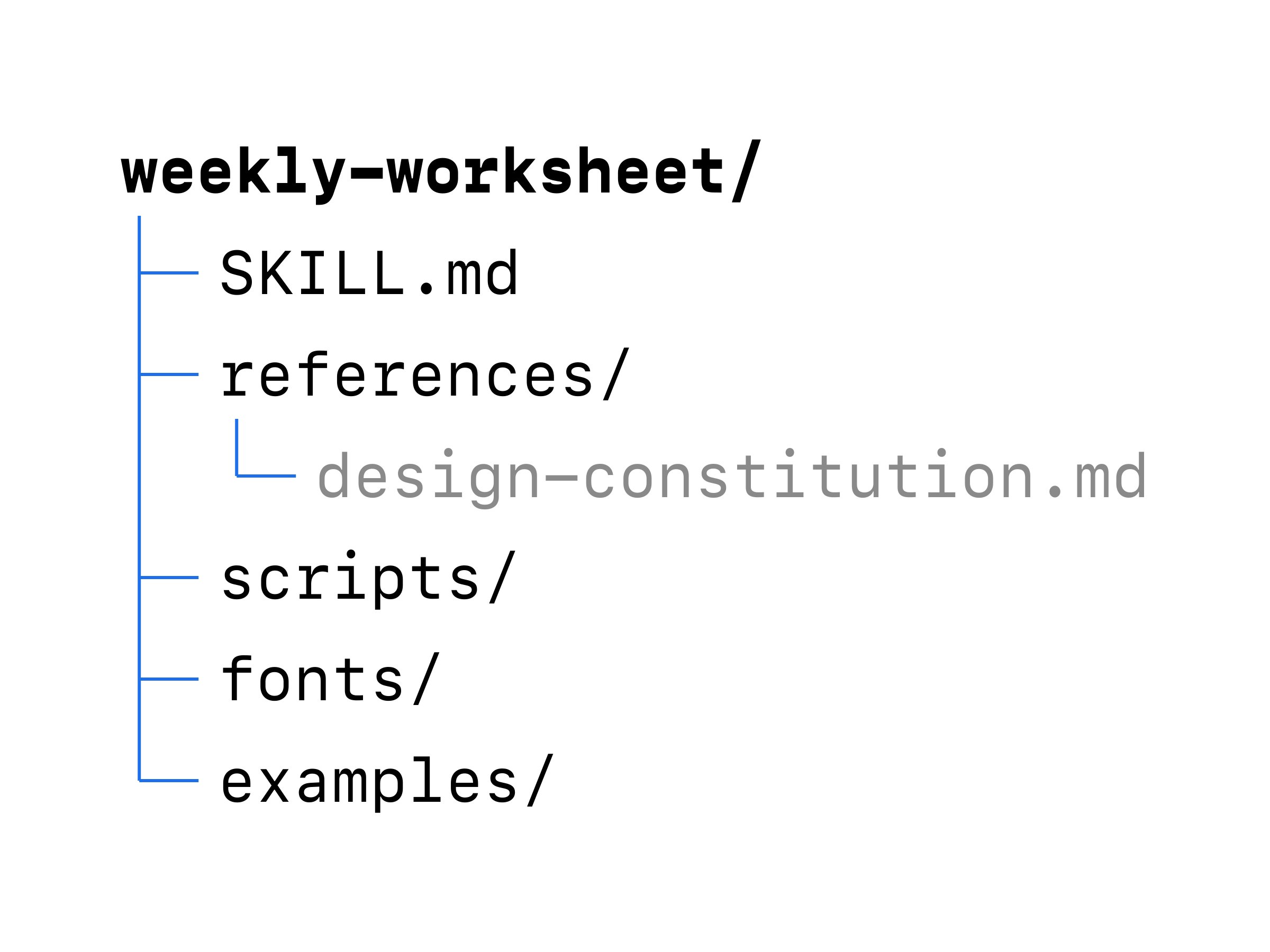
The example skill’s folder tree could look like this:
weekly-worksheet/
├── SKILL.md                    workflow and rules
├── references/
│   ├── design-constitution.md  page layout and typography
│   ├── topic-plan.md           order of topics by week
│   └── levels.md               content criteria by level
├── scripts/
│   ├── make-pdf.py             PDF generation script
│   └── layout-check.py         overflow and spacing check
├── assets/
│   └── logo-black.svg          logo used on the worksheet
├── fonts/
│   └── ...                     fonts used on the worksheet
└── examples/
    └── sample-worksheet.pdf    approved reference output
SKILL.md acts like a manager here: It says which file to read and which script to run, and when. Because the fonts are in the package, the PDF looks the same everywhere. Thanks to the check script, an overflowing table or an empty page is caught before the worksheet reaches the teacher.
Not every skill has to be this busy. A lesson-plan skill, for instance, might consist of just SKILL.md and two reference files (curriculum objectives and a plan template). The rule is simple: Whatever the AI will need while doing the job should be in the folder.
Reference output: showing instead of telling
It’s hard to describe in words how an output should look. The AI interprets a sentence like “keep the headings clean and the spacing balanced” a little differently every time. Putting an approved, finished example inside the skill largely removes that room for interpretation.
A reference output is the example you’d point to and say “exactly like this”: a PDF, a lesson plan, or a page you made before and liked. In the example skill, it’s the examples/sample-worksheet.pdf file.
When working with a reference output, keep three things in mind:
- Say what should be imitated. The AI may copy the example too literally, taking the topic, the sentences, even the numbers. State it clearly in
SKILL.md: “Use the structure, typography and spacing of the example; write new content every time.” - An example alone isn’t enough; pair it with a check. No AI guarantees a perfect result every time. The closest you get to perfect comes from three layers together: The reference output shows the target, the rules draw the boundaries, and a check step (a script or a checklist) catches drift.
- Keep the example up to date. When you change the rules, refresh the reference output too. If a rule says one thing and the example another, the AI usually follows the example.
How to write a good skill
1. Write the workflow step by step
“Make a nice worksheet” is not an instruction. Write the steps in order, clearly: what information to gather first, what to produce, what to check, where to save. For the example skill, it could look like this:
- Determine the student’s level and this week’s topic; ask if unknown.
- Check the previous week in the topic plan.
- Write the content.
- Generate the PDF.
- Run the layout check; if there’s a problem, fix it and regenerate.
- Prepare the answer key as a separate file.
2. Put everything it will need in the package
Generation script, templates, fonts, example files. Anything the AI has to guess is a source of inconsistency. It never needs to guess something that’s in the package.
3. Split long rules into separate files
Move information that isn’t needed every time (the curriculum list, design rules) under references/. Keep SKILL.md short and readable.
4. Write down the decision points too
A good workflow defines not only the production but also the decisions in between. For example, you can write into the skill that once the worksheet is done, Claude should ask the teacher: “Would you like a whiteboard you can use as a reminder during the lesson?” That way, even if you forget, the workflow remembers.
5. Tell it to ask when unsure
“If you’re not sure, don’t guess; ask” is one of the most valuable lines in a skill. Fixing a worksheet built on a wrong assumption always takes longer than asking up front.
6. Keep the instructions consistent with themselves
A skill’s output is only as consistent as its instructions. If one file says “headings bold” and another says “headings regular”, the AI picks a different one each time, and the output changes each time. The most common cause of inconsistent output isn’t the AI; it’s instructions that contradict each other.
To avoid this:
- Write each rule in one place only; don’t repeat it in other files, point to it.
- Always use the same term for the same thing. If you say “activity” in one place and “exercise” in another, the AI may think they’re two different things.
- Separate what’s required from what’s preferred: “always” and “if possible” don’t carry the same weight.
- When you change a rule, remove the old version everywhere and note the last-updated date at the top of
SKILL.md.
Does it only work in Claude?
No. Anthropic developed the skill format, but published it as an open standard in December 2025. Today, many tools, including OpenAI Codex, Gemini CLI, GitHub Copilot and Cursor, can read the same SKILL.md format. The tools look for skills in different folders, but the file’s content stays the same. So a skill you write well once will largely keep working when you move to another tool.
Where to start
Pick the task you repeat most. Collect in one file what you told the AI the last few times, put the steps in order, and add the templates you use and an output you liked to the folder. The first version doesn’t have to be perfect; the skill grows as you see what’s missing each time you use it.
You don’t need technical knowledge to get started quickly. In most cases, you can simply ask the AI to create the skill for you.