How to use feedback when working with AI
Good results from AI come not from a single prompt but from a well-built feedback loop. The types of feedback, its structure, and habits that shorten the loop.
Work done with AI rarely ends with a single request. The AI produces, you look, you say what you see, it fixes. More often than not, the quality of the result is decided not by the first prompt but by how this loop works.
The part of the loop that’s easiest to improve is in your hands: the feedback you give. When, how much and how you give it decides whether a problem is solved in one round or five.
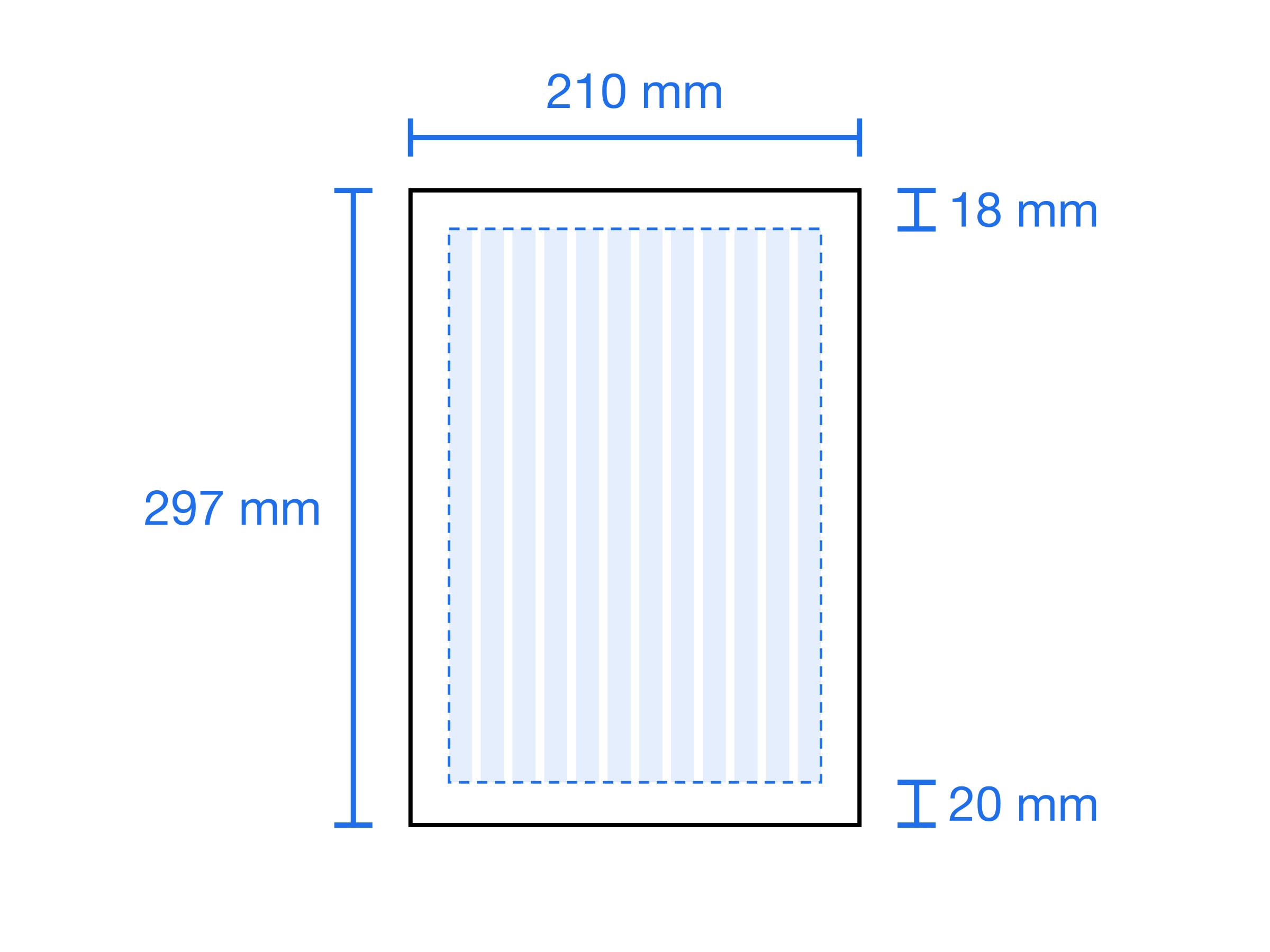
Let’s take an example. A teacher is using AI to prepare a four-page worksheet (PDF) for an A2 student. The topic is the Past Simple. Besides the content, the look matters too: a specific font for headings, a readable font for the body, and a page layout that holds up when printed.
1. Keep the loop small
Feedback only works when it’s clear what it refers to. When the AI produces a big piece of work in one go, it becomes hard to tell which part the problem you see comes from.
In the example, the teacher could ask for all four pages at once. But if the fonts, the spacing or the question difficulty are wrong, the same mistake has to be fixed on four pages at once. The better way is to split the work:
- First only page one: title, instructions and two exercises. This page sets the look of the whole worksheet.
- Once the look is settled, the rest of the content.
- The answer key last.
No part moves on until it’s approved. A font mistake fixed on page one never shows up on the other three.
2. Know who does the checking
The speed of the loop is decided by who verifies the result. The AI can produce the PDF, but it can’t see how it looks on paper or which question the student gets stuck on. Only the teacher can bring that information.
Knowing this changes two things:
- The pieces should be small enough for the teacher to check comfortably.
- The AI should say in advance what to check. A list like “Print this page and look at: heading size, line spacing, the length of the gap-fill lines” makes the check both faster and complete.
3. Give the right kind of feedback
Not all feedback pays off at the same speed. The more structured it is, the shorter the loop:
| Type | Example | Speed |
|---|---|---|
| Measurable fix | “Headings 24 pt, body 12 pt.” | Fastest. Unambiguous, solved in one round. |
| Screenshot | A photo of the PDF or the printed page | Richest. It carries problems you didn’t mention. |
| Concrete observation | “The gap lines in exercise 3 are too short to write the answer.” | Fast. It’s clear what’s wanted. |
| Vague observation | “The page feels a bit crowded.” | Slowest. The AI has to guess what to change. |
| Preference | “The previous heading font was better.” | Information only you can give. |
If you have a measurement, give the measurement. The difference between “make it a bit bigger” and “make it 18 pt” is often a few rounds.
4. The structure of good feedback
The way to turn a vague observation into a concrete one is to answer four questions:
- What did I look at? Which page, which section?
- What did I expect?
- What did I see?
- Where does it apply? Only here, or across the whole worksheet?
An example about the look:
Weak:    The fonts look bad.

Strong:  On page 1, the headings and body text are in the same
         font and almost the same size; the headings don't stand
         out. Make the headings a bold, distinct sans-serif and
         the body a readable serif. This rule applies to all pages.
An example about the content:
Weak:    The questions are too hard.

Strong:  The student solved questions 1–5 easily but got stuck
         on 6–10. Those questions have two unknown words and two
         different tenses in the same sentence. For A2, keep one
         difficulty per question.
5. Use screenshots, but say what you mean
An image of a page conveys at once what’s hard to describe in words. It also shows things you didn’t think of showing. In the example, the teacher sends a photo of the printed page to show the line spacing. In the same photo, the AI also notices that the text on the right edge runs past the printer’s margin; the teacher hasn’t seen that yet.
But a visual signal needs interpretation too. If the same photo has a question scribbled on in pen, the AI may take it for a design problem. Add one sentence with the image: “What I want you to look at in this photo is the line spacing.”
6. Ask the AI for feedback too
The loop runs both ways. The information the AI gives you is feedback as well, and you can ask for it from the start:
- Have it flag risky spots in advance. A note like “The highest overflow risk on this page is exercise 4, with its long sentences” points the check to the right place.
- Have it reason through uncertainty, but ask. For an observation like “the page is crowded”, it should list a few possible causes (font size, margins, number of exercises), fix the most likely one, and ask about the others.
- Have it state the scope before a big change. Saying “If I change the font, the tables on pages 2 and 3 will be rearranged too” prevents an unexpected result.
7. Verify “done”
The AI saying “fixed” doesn’t mean the fix was made. The loop itself can make mistakes:
- The fix may not land. The AI says it changed the heading font, but the headings in the PDF are still in the old font: The requested font wasn’t found on the system, and a default font was used instead.
- The fix may be partial. The line spacing is fixed on page one, but the same rule wasn’t applied to the other pages.
- The information may be wrong. The AI says a word is A2 level; checked against a word list, it turns out to be B1.
So end each round with a short check: Is the change really there, on every page, and is the claim actually true?
8. Give non-technical feedback too
The feedback that changes the most decisions is sometimes not a fix but a piece of context.
In the example, the teacher adds new information in the second round: She’ll also share the worksheet with the other English teachers at her school. That one sentence turns the worksheet from “for my student” into “for other people’s classes”:
- A blank “Name:” field replaces the student’s name.
- Colored highlights are changed so they still read on a black-and-white photocopy.
- The answer key moves to a separate page.
- Whether the images used can be shared becomes a question.
Preferences are just as valuable. The AI can’t guess a sentence like “The previous heading font was better.” If you don’t say it, it isn’t known.
In decisions like these, the AI’s biggest contribution is making the options and their consequences visible. You make the call.
9. Carry the loop across sessions
When a chat closes, the feedback you gave in it is lost too. Next week, preparing a new worksheet, you’d have to make the same font, spacing and difficulty corrections from scratch.
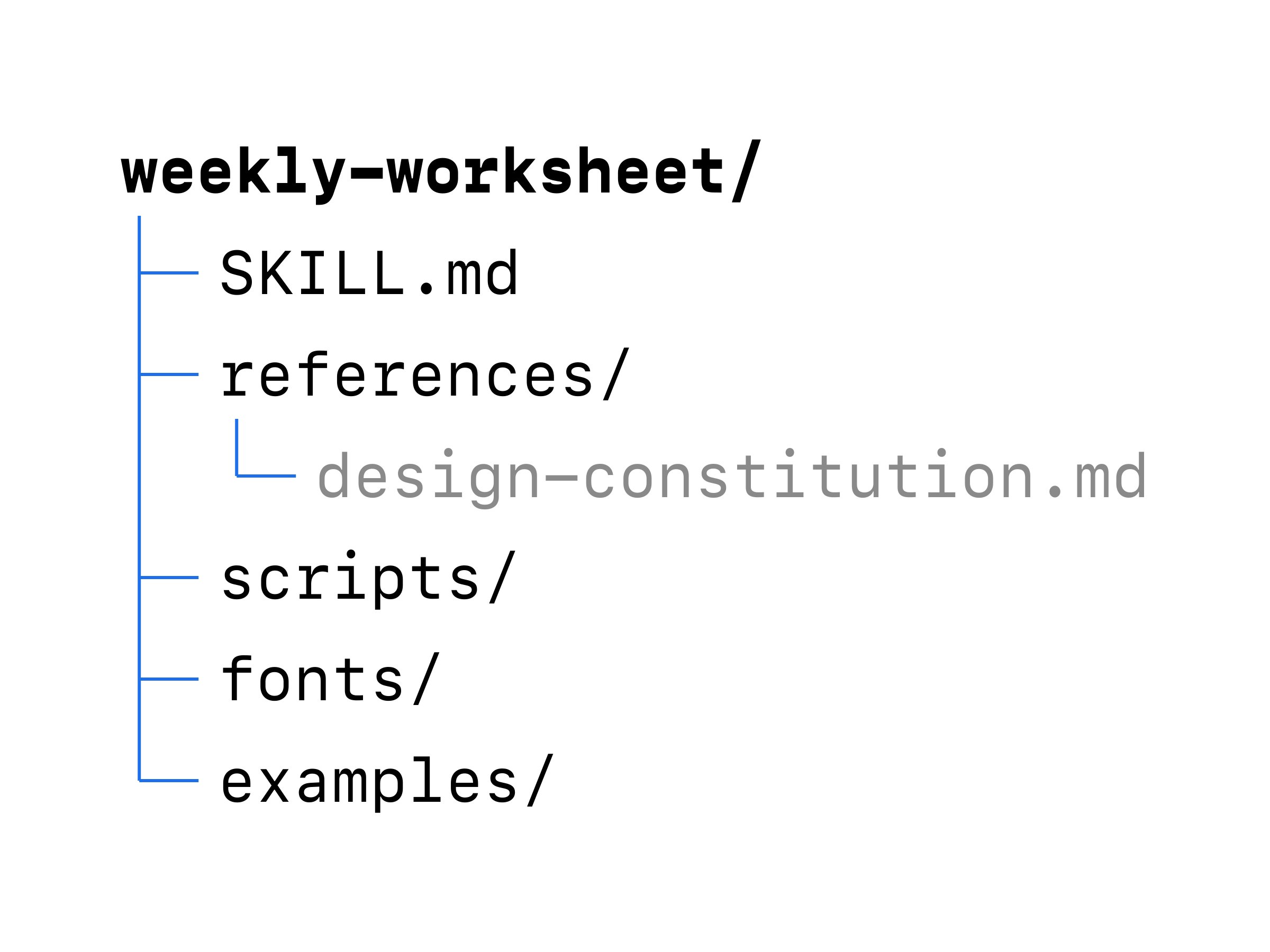
To prevent this, write the settled decisions down somewhere permanent: the fonts and sizes used, the page layout, question rules by level, where the answer key goes. The next worksheet starts with these rules.
The rule is simple: If you’re giving the same feedback twice, it’s no longer feedback; it’s a rule. Make it a permanent part of your prompt, your context file or your skill. (See Skills: giving AI a recipe for the job)
A short checklist
Before giving feedback:
- Is this round small enough for me to tell what’s what?
- If I can give a measurement (pt, mm, number of questions), did I?
- Did I write what I looked at, what I expected, what I saw and where it applies?
- If I’m attaching an image, did I say what to look at?
- Did I check that the previous fix was really applied, everywhere?
- Is there context or a preference that could affect the decision, and did I say it?
- Have I given this feedback before? If so, did I turn it into a permanent rule?